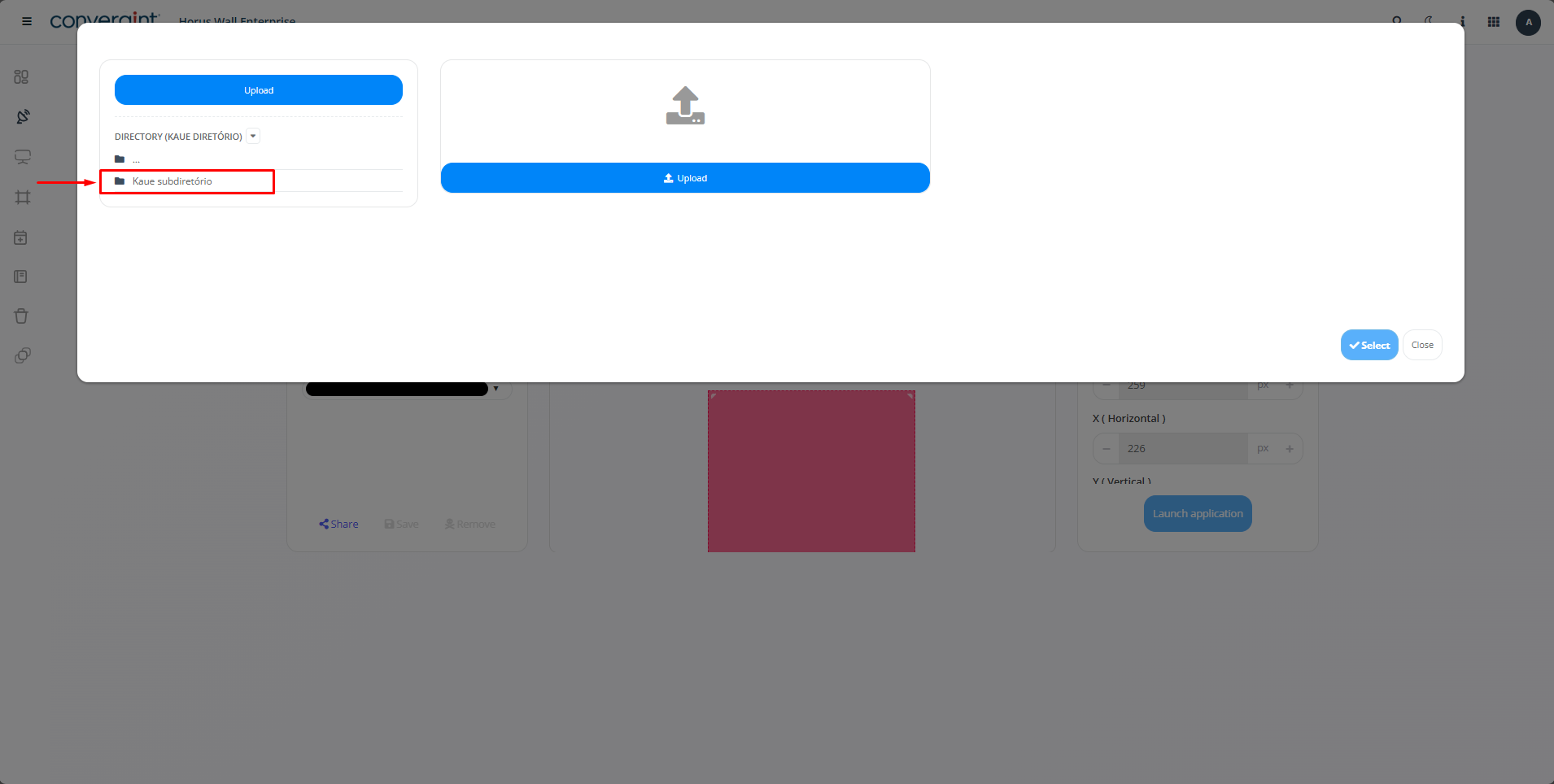
Creating the directory and a subdirectory.
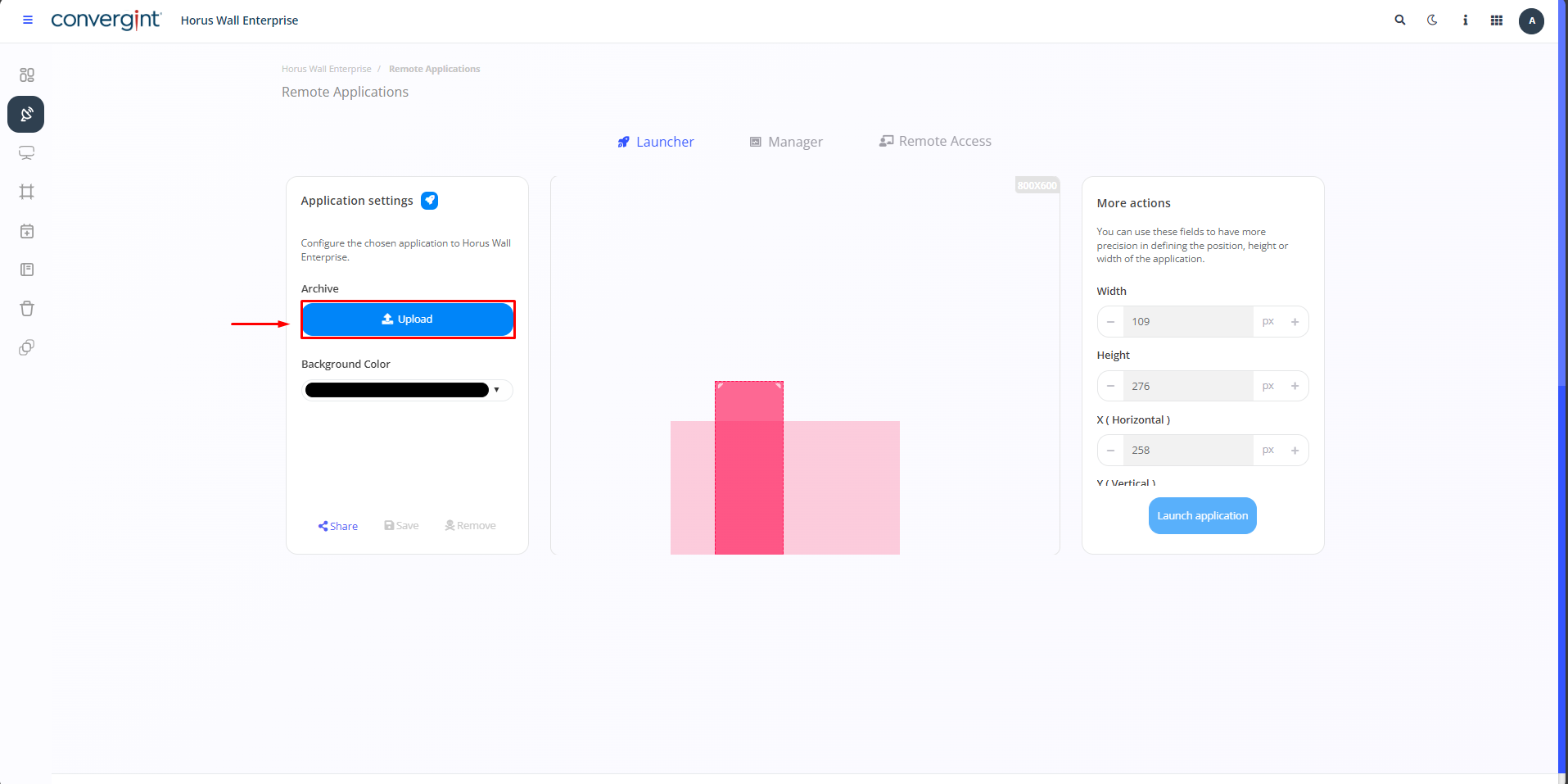
To create a directory and a subdirectory, simply go to the “Remote Applications” tab within “Launcher”. Then click on one of the topics mentioned in the corresponding tab.

After following the previous steps, click on “Upload” to access the directory.
To create a directory, you need to access the “Add” option, highlighted in the image.

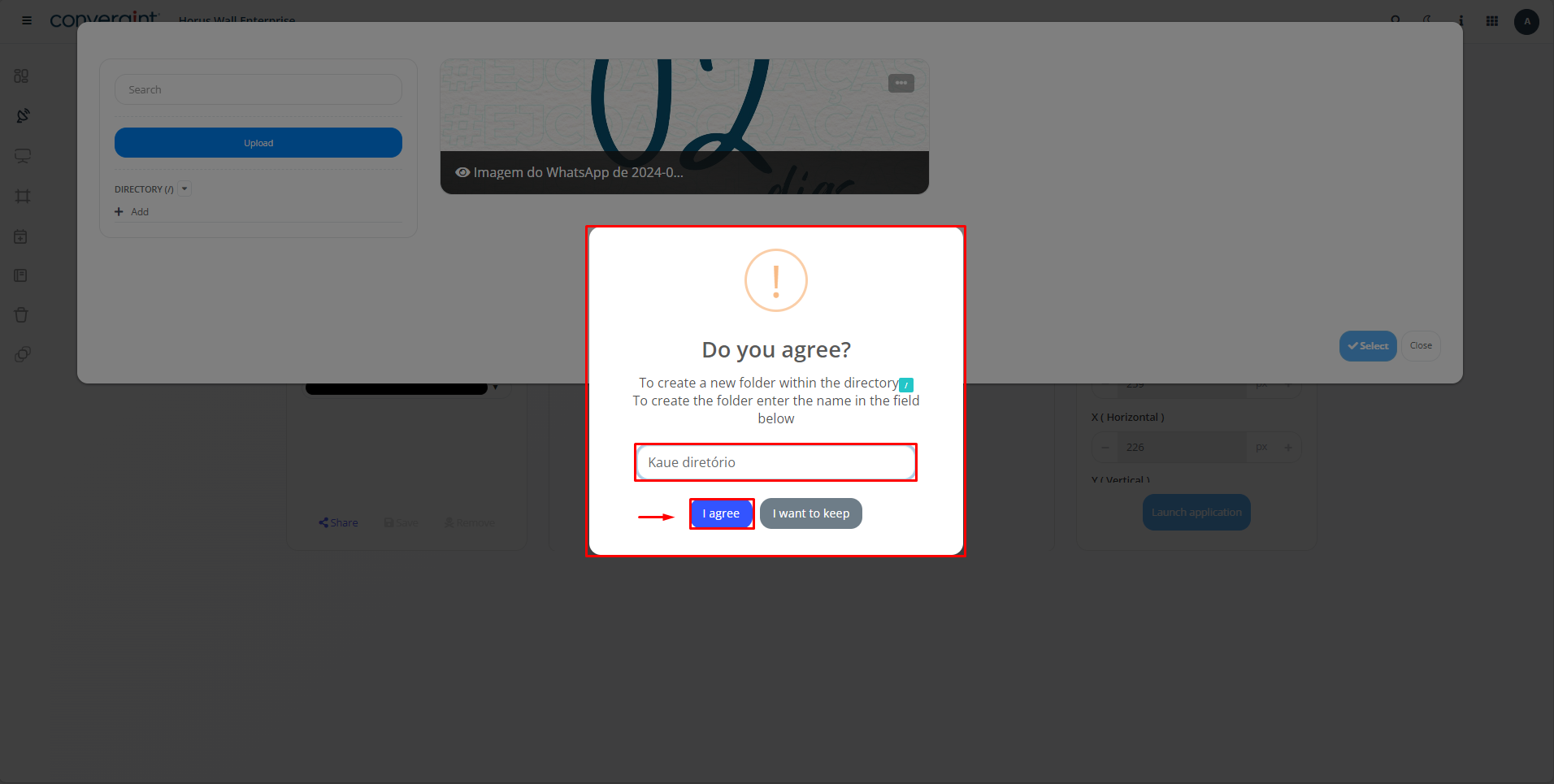
A confirmation message will then appear. After selecting the desired directory name, click “I agree" to create the directory.
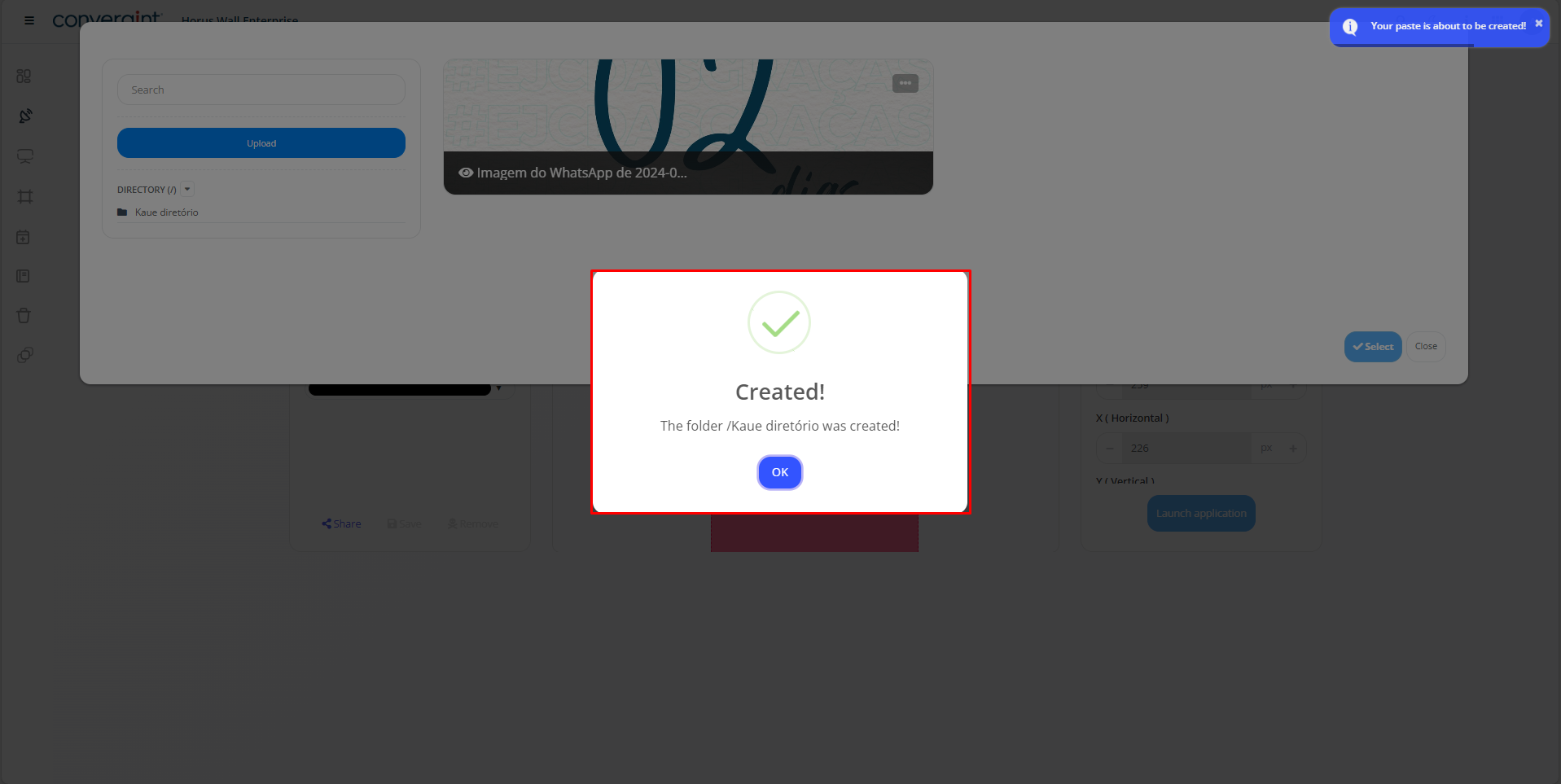
That's it, your directory has been created.
After following the previous steps, to create a subdirectory, first access the previously created directory.
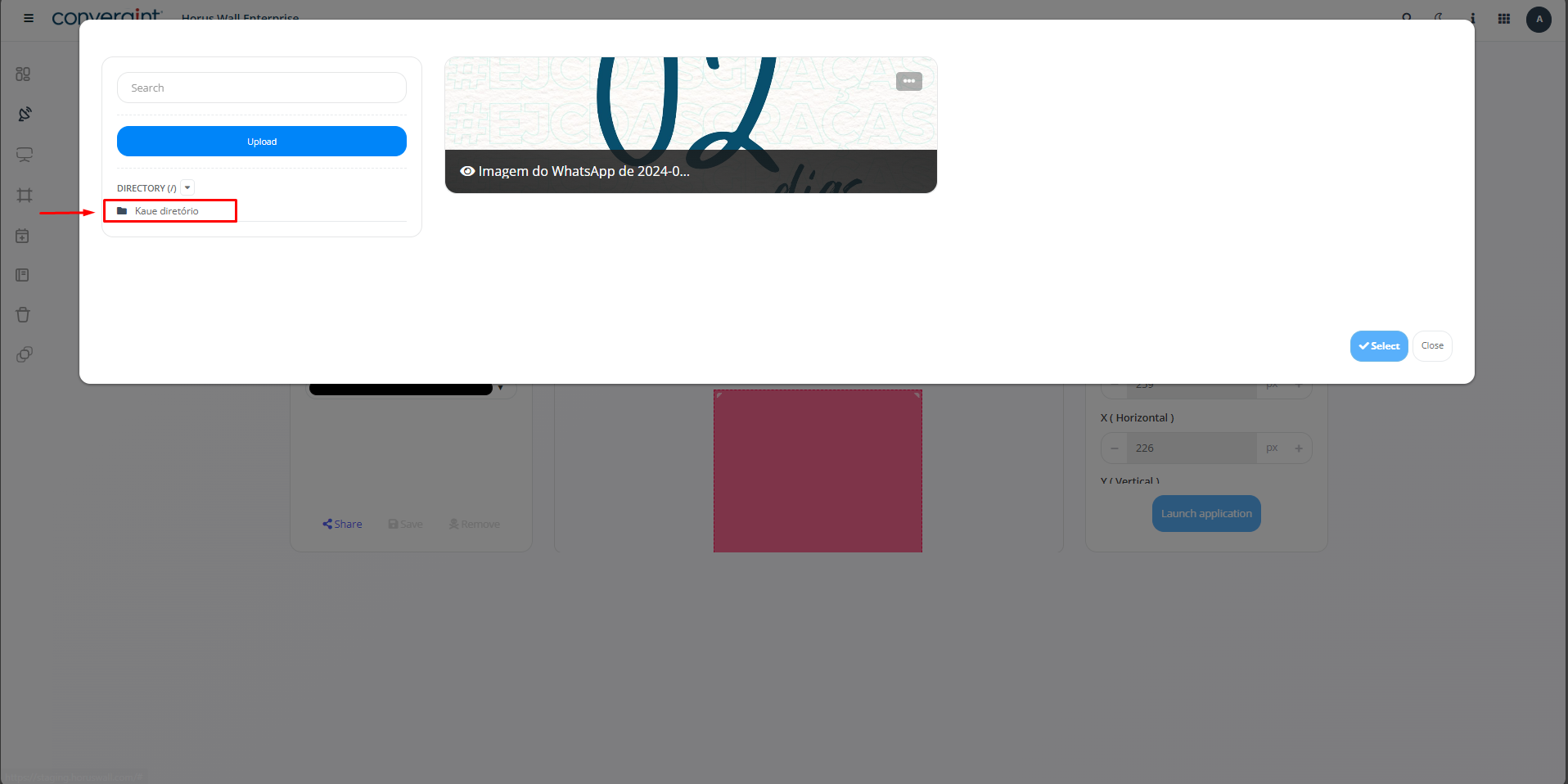
Accessing the previously created directory, click on “Add” to create a subdirectory, located on the arrow highlighted in the image. Then follow the same procedures as for creating a directory.

After following the same procedures mentioned above for the subdirectory, the subdirectory will be created.